|
|
Specify What to Backup
At this step you specify files and folders you want to backup.
You can include as many files and folders as you need to a single backup item.
If you want to exclude a file or a subfolder, remove the checkmark from it.
You can also specify include/exclude masks using the "Filter Settings" button.
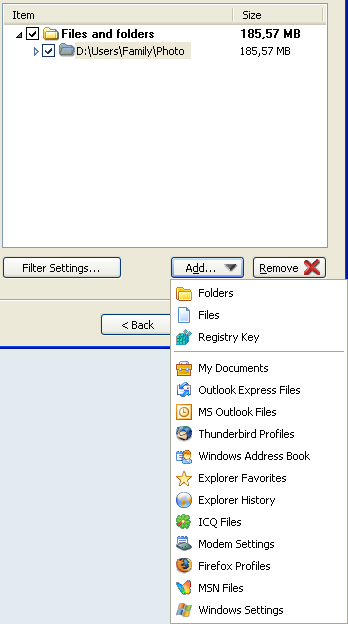
Adding Drives and Folders. Click the "Add..." button and choose the "Folders"
option.
In the "Browse for folders" dialog, select one or several drives or folders
that you want to add to the backup set – for this, place checkmarks near desired
drives or folders, and click "OK".
Repeat this procedure if you want to select more folders.
The list of selected folders will be added to the backup set. For each folder, you will see its size.
Adding Files. Click the "Add..." button and choose the "Files" option.
In the "Open" dialog, select one or several files and click "Open".
Repeat this procedure if you want to select more files.
The list of selected files will be added to the backup set.
For each file, you will see its size.
Adding Registry Keys. Click the "Add..." button and select the "Registry Key" option.
In the "Select Registry Key" dialog, choose required key and click "OK".
Repeat this procedure if you want to select more keys.
If you restore the registry key from the backup copy, then its current value will be replaced by the saved one.
Adding special data types. The program can backup the following data types.
 |
My Documents
Backup Platinum can save "My Documents" folder of the currently logged in user.
Click the "Add..." button and select the "My Documents" option.
Each time you will make a backup, the program will define what files in "My Documents" folder
have been changed or added and backup them.
|
|
Outlook Express Files
Backup Platinum can save your emails and account settings for Outlook Express.
Click the "Add..." button and select the "Outlook Express Files" option.
During backup, the program will define what data in your Outlook Express profile
has been changed and backup it. If you restore the profile, then your current emails
and account settings will be replaced by the saved ones.
Note that in Windows Vista, there is Windows Mail instead of Outlook Express.
Backup Platinum can save your emails and account settings for Windows Mail.
For this, you should also select the "Outlook Express Files" option.
|
|
MS Outlook Files
Backup Platinum can save your emails and account settings for Microsoft Outlook.
Click the "Add..." button and select the "MS Outlook Files" option.
During backup, the program will define what data in your Outlook profile has been
changed and backup it. If you restore the profile, then your current emails and account
settings will be replaced by the saved ones.
|
|
Thunderbird Profiles
Backup Platinum can save your emails and account settings for Mozilla Thunderbird.
Click the "Add..." button and select the "Thunderbird Profiles" option.
During backup, the program will define what data in your Thunderbird profile has been
changed and backup it. If you restore the profile, then your current emails and account
settings will be replaced by the saved ones.
|
|
Windows Address Book
Backup Platinum can save your Address Book. Click the "Add..." button and select
the "Windows Address Book" option.
Note that after restoring, your current Address Book will be replaced by the saved one.
|
|
Explorer Favorites
Backup Platinum can save your Favorites from Internet Explorer.
Click the "Add..." button and select the "Explorer Favorites" option.
After restoring, the saved URLs will be appended to the list of your current Favorites.
|
|
Explorer History
Backup Platinum can save the history of visited URLs in Internet Explorer.
Click the "Add..." button and select the "Explorer History" option.
The program will restore the history by appending the saved links to your current Explorer history.
|
|
ICQ Files
Backup Platinum can save your ICQ chats history.
The program supports all versions of ICQ.
Click the "Add..." button and select the "ICQ Files" option. Note that after
restoring, your current history will be replaced by the saved history.
|
|
Modem Settings
Backup Platinum can save modem connection settings. Click the "Add..."
button and select the "Modem Settings" option.
Note that after restoring, your current modem connection settings will be
replaced by the restored ones, so all current settings will be lost.
|
|
Firefox Profiles
Backup Platinum can save your profile settings, plugins, themes and other data
for Mozilla Firefox. Click the "Add..." button and select the "Firefox Profiles" option.
During backup, the program will define what data in your Firefox profile has been
changed and backup it. If you restore the profile, then all settings and other data
stored in your profile will be updated.
|
|
MSN Files
Backup Platinum can save your MSN chats history. Click the "Add..." button and
select the "MSN Files" option.
Note that after restoring, your current history will be replaced by the saved history.
This function works only with MSN Messenger 7.0 and later.
|
|
Windows Settings
Backup Platinum can save your current Windows settings which include fonts, mouse,
console, appearance, desktop and Internet Explorer settings.
- Fonts
Saves all fonts currently installed on your system.
After restoring, the program updates font files. At this, any new fonts added after
the last backup operation will not be lost.
- Mouse
Saves all current mouse parameters specified in the Control Panel.
After restoring, your current parameters will be updated.
- Console
Saves console settings for your system and for individual programs and applications
(for instance, you can save console settings for Far Manager).
After restoring, current console settings will be updated.
- Appearance
Saves your current color scheme and cursors set.
After restoring, your current color scheme and cursors set will be replaced
by the saved ones. To enable the restored settings, you need to log off and then log in again.
- Desktop
Saves all files, folders and shortcuts stored on your desktop.
After restoring, you will see both current and saved data on the desktop.
- IE Settings
Saves the "Internet Options..." settings available from the "Tools" menu in Internet
Explorer.
After restoring, the settings will be updated. To enable the restored settings,
you need to restart Internet Explorer.
Click the "Add..." button and select the "Windows Settings" option.
During backup, the program will define what settings have been changed and backup them.
If you want to exclude some of Windows settings from the backup set (for example, "Mouse" or
"Desktop"), you should remove the checkmark near that type of settings.
|
To remove Folders or Files select a folder or a file in the backup set and click the "Remove" button.
You can use this method only for root folders or files. If you want to exclude a subfolder or a file inside
a folder, remove the checkmark from it.
Checkmarks. Black checkmarks near files and folders indicate that they are included in
the backup set. Grey checkmark near a folder shows that some files or subfolders in this folder are excluded.
Filter Settings. Click the "Filter Settings" button to specify
masks for files to be processed and masks for files to be ignored during
backup.
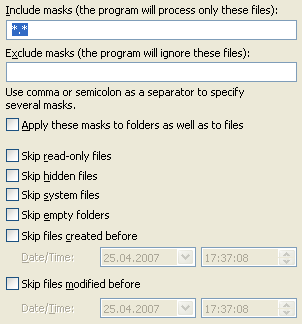
Backup Platinum will process only files that match at least one of include masks, but
do not match any of exclude masks. When you specify masks, you should separate them by
commas or semicolons. By default, "*.*" is used as include mask and no exclude
masks are specified. This means that all files selected for the item will be included.
Apply these masks to folders as well as to files. Use this option to apply
specified masks to folders as well as to files. If this option is not selected, masks
are applied only to files.
Skip read-only files. The program will ignore all read-only files and folders.
Skip hidden files. The program will ignore all hidden files.
Skip system files. The program will ignore all system files.
Skip empty folders. Check this option if some folders in your backup set are empty or
contain only excluded files. Backup Platinum will ignore such folders, and corresponding backup
copies of those folders will not be created in destination.
There are several ways to exclude files from the backup set. You can remove checkmarks
near files to exclude them, or use Include/Exclude masks, or specify item properties such as
"Skip read-only files", "Skip system files", "Skip files created before" etc.
Skip files created before. The program will skip all files and folders created earlier
than the date specified here.
Skip files modified before. The program will skip all files and folders last modified
earlier than the date specified here.
"Next". |
|
|