|
|
Specify Where to Backup
At this step you select the destination folder where backup copies of your
files will be stored. You can choose to backup to a local drive, LAN, FTP
server, or a CD-R/W, DVD-R/W, DVD+R/W, BD-R/RE device. Note that all external
drives connected via USB should be specified as local drives by choosing the
"Local drive/LAN" option.
Click the "Browse for folder" button
 .
In the "Browse For Folder" dialog select a folder or create a new one. .
In the "Browse For Folder" dialog select a folder or create a new one.
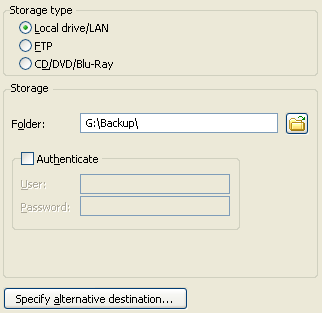
If the selected folder can be accessed only under some specific user account,
you can check
the "Authenticate" option and specify username and password.
Alternative destination
You can specify alternative destination for your backup data.
It can be used if something goes wrong with the main destination folder, for example,
if the network connection is lost. You can also use both destinations to store
backup data in two different places.
Click the "Specify alternative destination..." button.
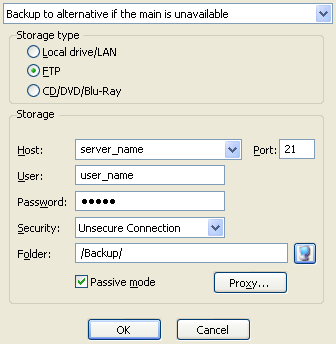
Now you should specify how to use the alternative destination.
 |
Don't backup to alternative destination.
Your data will be backed up only to the main destination.
|
|
Backup to both destinations. First, your data will be backed up
to the main destination, and then the same backup will be made to the alternative destination.
|
|
Backup to alternative if the main is unavailable.
Your data will be backed up to the main destination. But in case of error, or
if it is impossible to use the main destination, the same backup will be made to
the alternative destination.
|
Then you should specify the alternative destination folder just as you selected the main folder.
You can choose to backup to a local drive, LAN, FTP server, or a CD-R/W, DVD-R/W, DVD+R/W, BD-R/RE device.
Select the "FTP" option if you want to backup your files to a remote
FTP server.
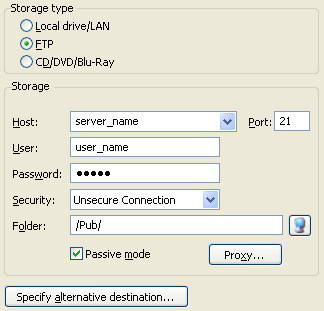
Host.
Enter FTP server name, or select the name from the list. If you select a server name
you used before, the program automatically places server data in the corresponding fields (except password).
Port.
Enter FTP port number. Default port number is 21.
User.
Enter your FTP username.
Password.
Enter your FTP password.
Security. Here you can select what connection (secure or unsecure) to use to access
an FTP server. By default the program uses an unsecure connection. If an FTP server requires
a secure connection, you can choose one of two mechanisms that initiate the security:
implicit or explicit security.
|
Unsecure Connection: Choose this option to use an unsecure connection.
|
|
Connect Using Implicit SSL: Implicit (passive) security automatically
initiates a SSL connection as soon as the program connects to an FTP server.
In this case, the FTP server defines a specific port (by default 990) to be used
for secure connections.
|
|
Connect Using Explicit SSL: Explicit (active) security means that the program
issues a specific command to the FTP server after establishing a connection to establish
the SSL link. The default FTP server port is used.
Tip. You can think of implicit security as "always on" and explicit security as "turn on".
|
Passive mode. In passive mode, FTP data connection is established by your computer.
This may be necessary if firewalls do not allow establishing connection from outside.
By default, this option is turned on.
Folder. To choose a remote directory where to backup your data, click
the "Select FTP folder" button
 .
The "Select FTP folder" dialog will appear. .
The "Select FTP folder" dialog will appear.
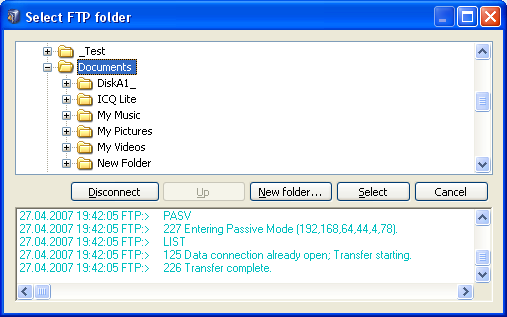
Upon establishing FTP connection, the list of remote directories is displayed
in the upper window of the dialog.
Select a directory by clicking on it, then click the "Select" button. If you
want to create a new directory, click the "New folder" button.
The bottom view of the window shows FTP session log messages.
Proxy. Click this button to choose your proxy settings. Proxy server
settings dialog will be displayed. It allows you to configure your FTP and
SOCKS proxy.
By default no proxy are used.
Select the "CD/DVD/Blu-Ray" option, if you want to backup onto CD, DVD or BD (Blu-Ray disc) media.
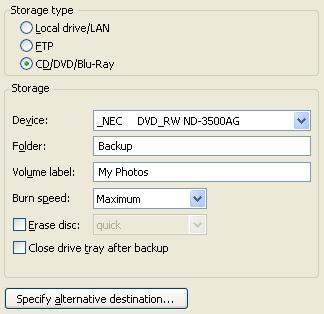
Device.
Choose your CD-R/W, DVD-R/W, DVD+R/W or BD-R/RE device.
Folder.
Type the name of a folder where to backup your data. Note that the path to
this folder should not contain any components ("component\component\...") with
the names longer than 64 characters, as well as any of the following characters: * ? : ;.
Volume label. Here you can specify a label for CD/DVD/Blu-Ray disc.
Burn speed. Choose the speed that will be used to burn CD/DVD/Blu-Ray discs.
Erase disc. Choose this option to erase a CD-RW/DVD-RW/DVD+RW/BD-RE(BD-RW) disc before writing on it.
You can either use blank (brand-new) CD-R/W, DVD-R/W, DVD+R/W, BD-R/RE disc, or you should
erase discs, if they were previously formatted with a 3rd party program like DirectCD.
Close drive tray after backup. When the CD/DVD/Blu-Ray burning process is finished,
CD drive tray opens. If you check this option, CD drive tray will be automatically closed after backup.
For large backups with size exceeding free space available on a single disc, the program uses
spanning: it will split the backup into several parts and place them on several discs.
"Next". |
|
|